How to turn off automatic uploads on Xbox Series X
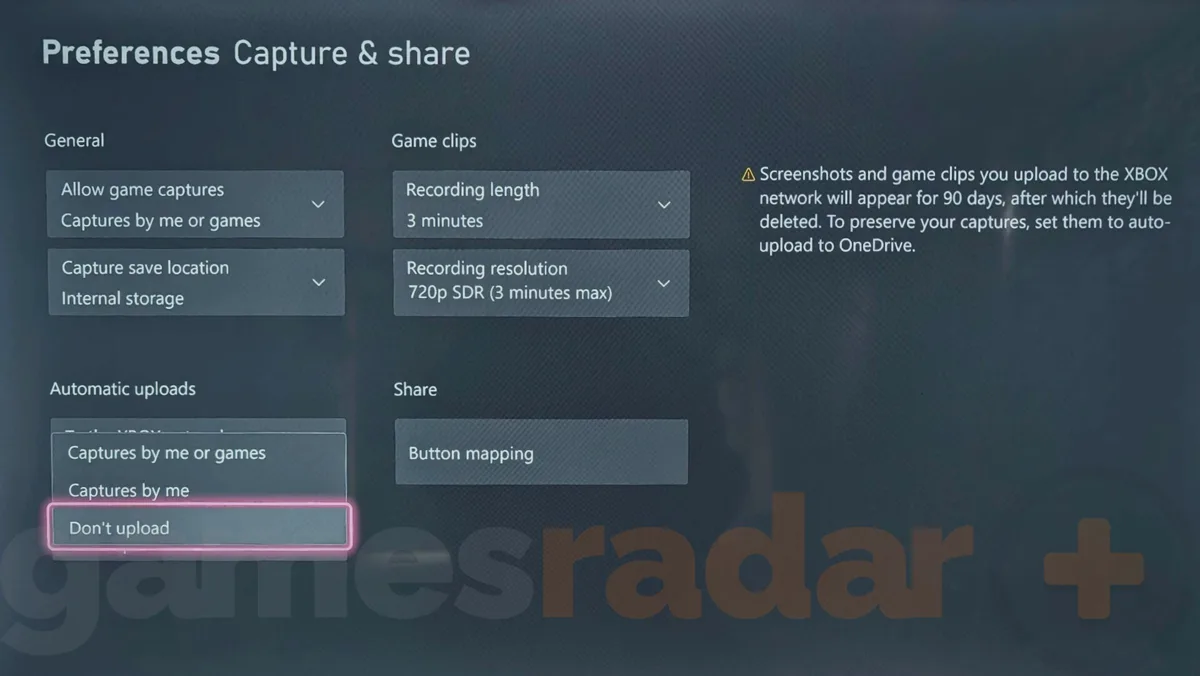
You can turn off automatic uploads to Xbox Network in the Xbox Series X console’s Capture & share settings. You can still save clips and screenshots to your console afterward.
- Press the Xbox button on your controller.
- Select “Profile & System.”
- Open “Settings.”
- Select “Preferences.”
- Open “Capture & Share.”
- Find the “Automatic uploads” section.
- Select “Xbox Network.”
- Choose “Don't upload” from the drop-down menu.
See the Xbox Series X automatic upload settings screen (GamesRadar+)
What did players record before their accounts were suspended?
One GTA 6 clip from the single-player story mode on Xbox Series X was flagged as soon as it uploaded automatically. The account received an automatic two-day suspension that the player couldn’t appeal.
The email gave no clear reason for the suspension. The player found one blocked clip among their saved clips.
A separate two-day Xbox account suspension followed the recording of a cutscene, a scripted story scene (Reddit u/LowLifeRoket_JR). That player could still play story mode during the suspension.
Original post about a two-day Xbox suspension after auto-upload
Can an automatically uploaded screenshot lead to a suspension?
It’s unclear whether automatically uploading a still screenshot can lead to an account suspension. The U.S. Xbox Community Standards apply to shared clips and screenshots.
Automatic uploads and sharing may be on by default for both.