

How to Lower Cinematic Frequency on PS5
These steps come from a launch-time record on PS5 using the English UI. Option names in other UI languages are unconfirmed.
- Press OPTIONS to open the menu, then select Settings.
- Select Camera.
- Go to the Cinematic section at the bottom of the Camera screen.
- Lower Cinematic Kill Shot Frequency from its default of 3.
- Lower Cinematic Vehicle Crash Frequency from its default of 3.
- Check that both values now show lower than 3.
If You Can't Find the Options
If you don't see Cinematic, keep moving down the Camera screen. The section is at the bottom.
If your game uses a non-English UI, the labels may differ from the English names above. Those translations are unconfirmed, so look for the equivalent section at the bottom of the Camera screen.
Cinematic Options and Default Values
The option names and default values come from ViceManual's launch-time record. What Rockstar Games Support confirms is that Cinematic sits under Camera.
Other platforms, labels in other UI languages, and the range of selectable values are unconfirmed.
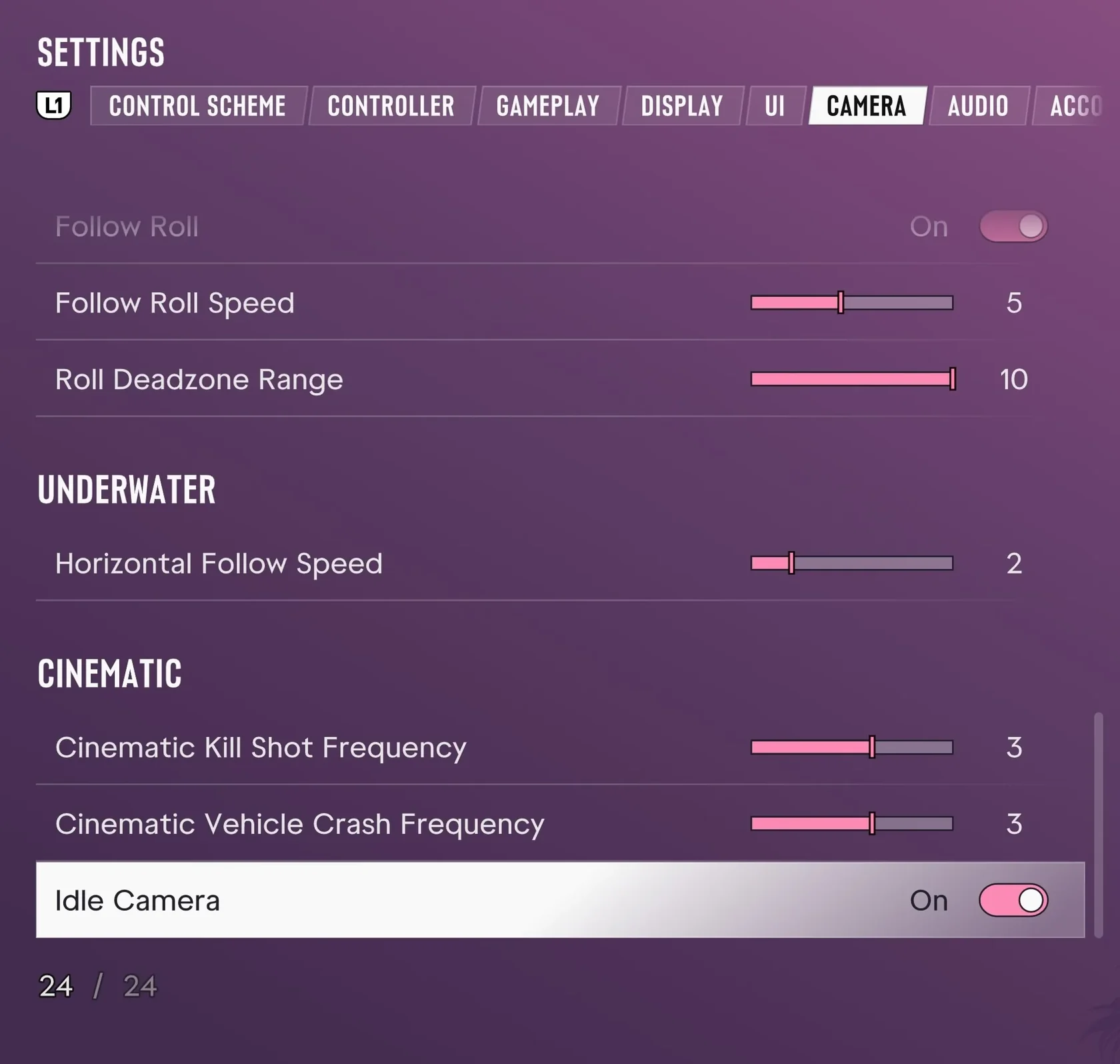
| Platform | PS5 |
|---|---|
| Menu path | OPTIONS → Settings → Camera → Cinematic (bottom) |
| Kill cinematic option (English UI) | Cinematic Kill Shot Frequency |
| Crash cinematic option (English UI) | Cinematic Vehicle Crash Frequency |
| Default value (recorded) | 3 for both options |
| Listed as | Options for lowering frequency |
| Recorded environment and build | PS5, English UI, New Zealand account (screenshot collection build 930.048.020) |
Pre-Launch Note on Toggling Crash Cinematics (Unconfirmed in Retail)
TGG's pre-launch notes (a Reddit r/GTA6 post) say crash cinematics can be toggled. Whether the retail release offers the same toggle is unconfirmed. What the retail record confirms is the frequency options above.