
What hidden controls work in cars and on bikes?
In a car, you can toggle the radio and get out with the engine running.
The Cross icon in the screenshot marks the "Turn Off" option inside the radio menu, which is separate from the D-pad Left double-tap shortcut that toggles the radio directly.
For dedicated guides, see How to Turn the Vehicle Radio On and Off in GTA VI (tips/car-radio-on-off), GTA VI: How to Switch From Radio to Vehicle Options (basics/open-vehicle-options-menu), How to leave the car engine and lights on in GTA VI (tips/keep-engine-running-double-tap-exit), and How to Flip Off and Yell at Drivers in GTA VI (tips/middle-finger-road-rage).
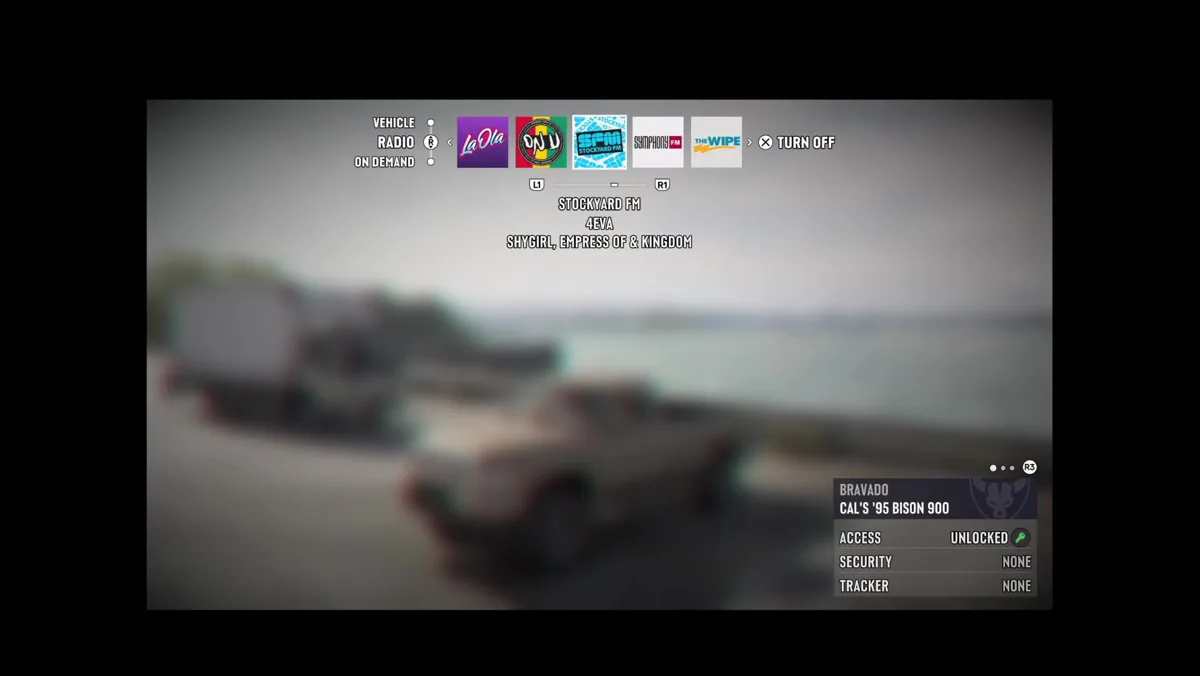
| Turn the car radio on or off | While driving, double-tap D-pad Left (same on PS5 and Xbox) |
|---|---|
| Open the vehicle controls | In a vehicle, hold D-pad Left to reach the controls for windows, lights, radio and more (if the Radio row appears first, see GTA VI: How to Switch From Radio to Vehicle Options (basics/open-vehicle-options-menu)) |
| Switch the headlights | In a vehicle, double-tap Circle on PS5 or B on Xbox to cycle between off, high beams and low beams |
| Duck down and hide in the car | While driving a car, hold Circle on PS5 or B on Xbox |
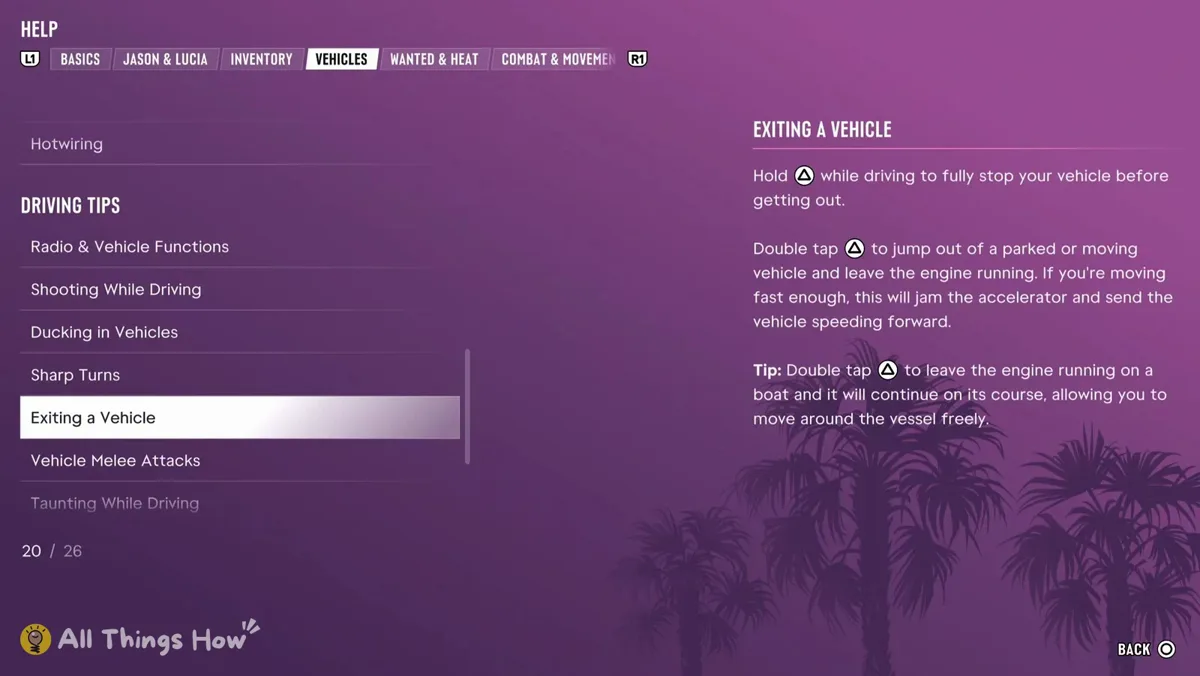
| Get out with the engine and radio on | While driving or getting out, double-tap Triangle on PS5 or Y on Xbox |
| Attack with the door / kick from a bike | While driving, press Square on PS5 or X on Xbox (swings the door in a car, kicks on a bike) |
| Yell at a nearby driver | Click the right stick |
How do you walk around a boat deck while cruising?
While driving a boat, double-tap Triangle on PS5 or Y on Xbox to stand up and walk around the deck. The boat keeps cruising while you move around.
How to use auto-drive and set a quick waypoint
To set a nearby waypoint without opening the full map, hold Down on the D-pad to open Quick Navigation, a menu for choosing nearby destinations.
For the remaining selection and confirmation inputs on the default PS5 layout, see GTA VI: Set a waypoint without opening the map on PS5 (tips/quick-waypoint).
Using Cinematic Mode, the camera view for auto-driving, lets your character drive to a waypoint automatically while following all road rules. You can also adjust the driving speed.
Random events can still interrupt auto-driving, such as retaliation from a group the character previously robbed or police pulling you over if you are wanted.
You can also check How to Use Auto Drive in GTA VI's Cinematic Camera (tips/cinematic-auto-drive) and GTA VI: Set a waypoint without opening the map on PS5 (tips/quick-waypoint).
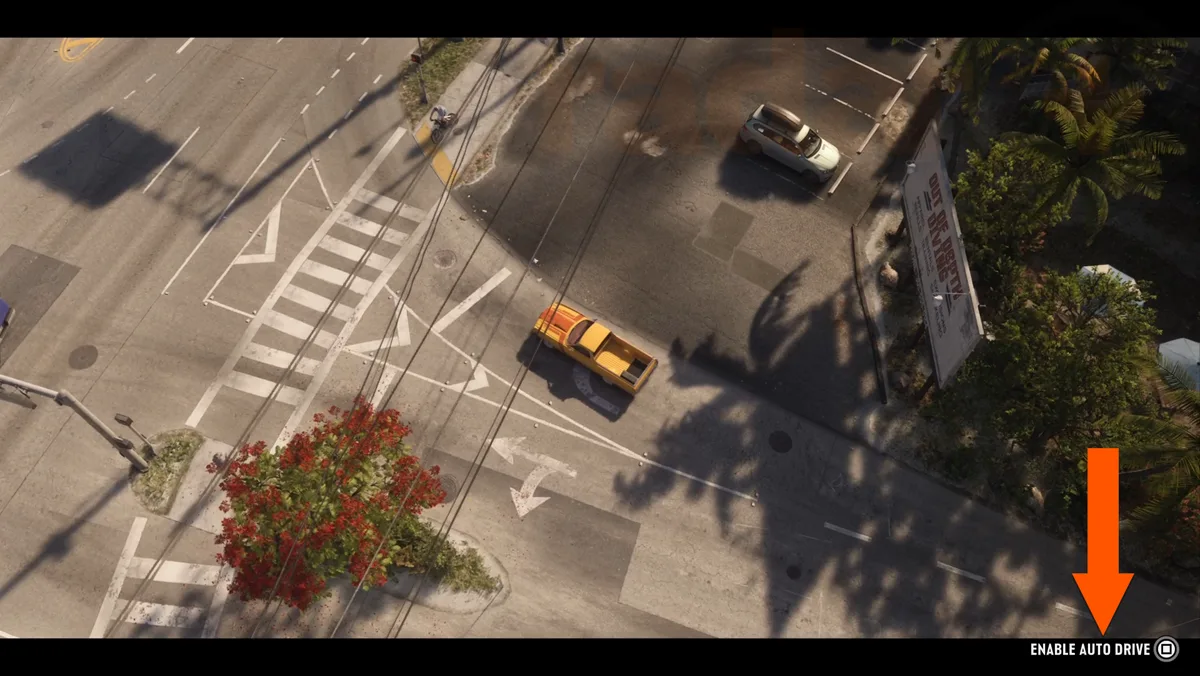
- Set a waypoint while in a vehicle.
- Hold Down on the D-pad.
- While holding Down, press Options on PS5 or Menu on Xbox for Cinematic Mode.
- Hold Circle on PS5 or B on Xbox to start auto-driving.
Quick Navigation and Auto Drive prompts on the default PS5 layout (allthings.how)
How to flip an overturned car on foot
When a car flips over, you can stand beside it on foot and push it back upright. See also How to flip an overturned car on foot in GTA VI (tips/flip-overturned-car).
- Move up to the side of the overturned car.
- Click L3 on PS5 or LS on Xbox to brace.
- Hold Square on PS5 or X on Xbox to push the car.
How to flip an overturned car and when the push fails (Kotaku)
How to check a vehicle's security
You can use WAiNK, the in-game feature for checking vehicles, to scan a car for security right away.
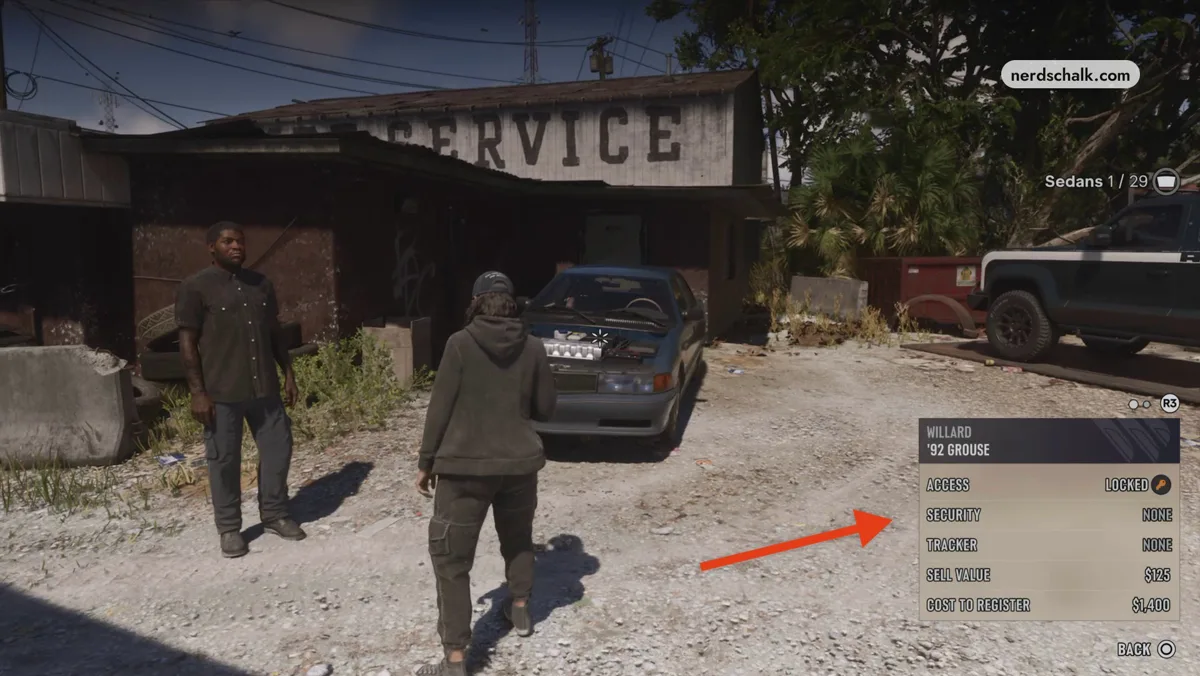
- Hold Up on the D-pad to open WAiNK (the in-game vehicle scanner).
- Hold R1 on PS5 or RB on Xbox to scan the vehicle for security.
How to rest on foot, slow time while driving, and stop to look around
While on foot, you can rest by sitting on the sand or leaning against a wall, or stop to look around in first-person view (seeing through the character's eyes).
For resting on foot, see How to Rest, Sit, or Lean on Foot in GTA VI (tips/rest-sit-lean-hold-circle).
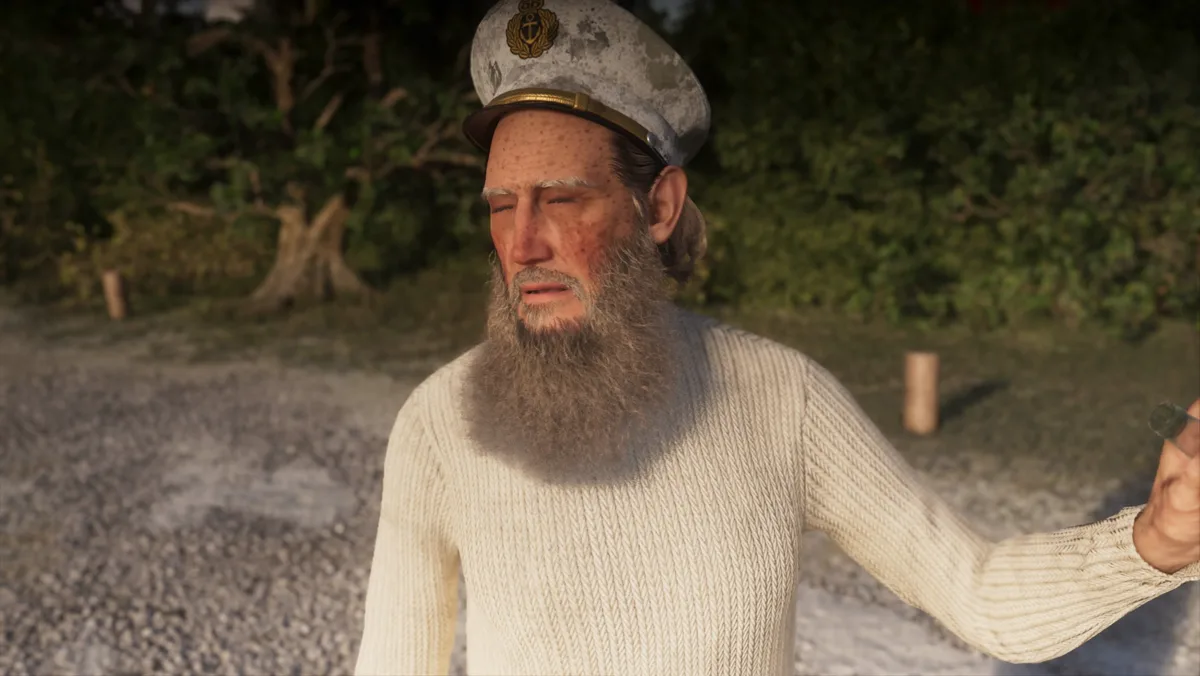
| Sit or lean on foot | Hold Circle on PS5 or B on Xbox while on foot (sit on the sand or lean against a wall) |
|---|---|
| Slow time and reveal nearby details while driving | While driving, click both sticks at the same time (L3 + R3 on PS5 or LS + RS on Xbox) |
| Stationary first-person inspect view | On PS5, hold L2 and tap R3 |
On-foot resting and stationary first-person screenshots (PC Gamer)