How to Use Inspect Surroundings on Foot
According to Alan Sahbegovic on GTABase, the on-foot control is listed as Inspect Surroundings in GTABase's control guide, and PC Gamer also corroborates this feature.
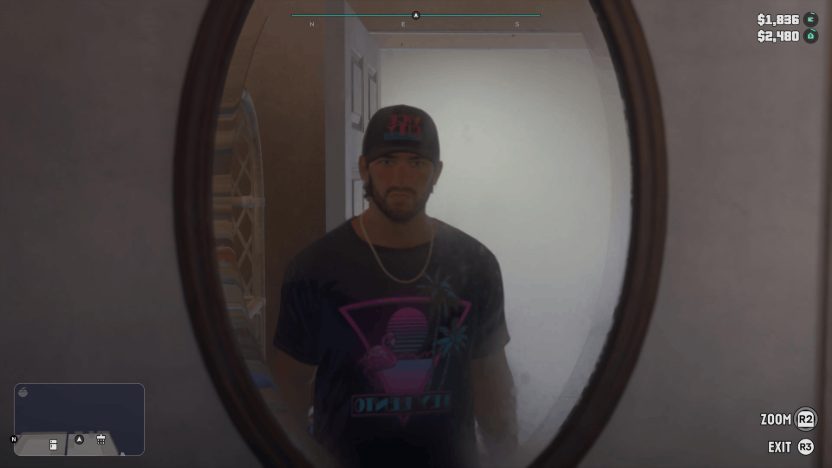
A PS5 screenshot published by Alan Sahbegovic shows Jason in front of a mirror with no weapon or sight visible, displaying ZOOM R2 and EXIT R3 in the bottom-right corner.
For triggering the view while unarmed, there is one specific player report from Reddit user Joseph_566 on a base PS5.
Joseph_566 reported that holding L2 and clicking R3 while unarmed enters first-person view, where zooming works but moving around does not.
- Stop moving while on foot. Hold L2 on PS5 or LT on Xbox Series X|S.
- Press R3 on PS5, or click the Right Stick (RS) on Xbox Series X|S, to enter Inspect Surroundings.
- You can look around while this view is active. Your character cannot move. The PS5 look input and whether L2 must remain held while looking around or zooming are unconfirmed.
- Press R2 on PS5 or RT on Xbox Series X|S to zoom.
- Press R3 to exit on PS5, matching the on-screen EXIT R3 prompt.
How Binoculars and Weapon Optics Work in First Person
Other first-person views depend on your equipment or weapon attachments rather than standing still.
In Push Square's customization image of the HAWK & LITTLE MEDIATOR, selecting Optics under ATTACHMENTS displays Enables first-person view. at the bottom left.
Alan Sahbegovic notes on GTABase that you can move your character while looking through binoculars (whether you can move while aiming through a scope or weapon optic is unconfirmed in the provided excerpts). Follow these steps to use binoculars in first person.
- Hold L1 on PS5 or LB on Xbox Series X|S to open the weapon wheel.
- Select the binoculars from the weapon wheel. Their default position and the PS5 input that confirms the selection and equips them are unconfirmed.
- Hold L2 on PS5 or LT on Xbox Series X|S to look through them.
- Use the D-pad to zoom.
First-Person Views and the Partial, First-Person-Like Phone Overlay
Each documented first-person option differs in its required equipment, zoom input, and movement rules.
| Inspect Surroundings | On foot (unarmed reported once on base PS5); zoom with R2 or RT; character cannot move |
|---|---|
| Weapon Optics | Requires compatible sight under ATTACHMENTS > Optics; hold L2 or LT to aim and press R3 or RS |
| Binoculars | Selected from the weapon wheel; zoom with the D-pad; character can move while viewing |
| Smartphone | Open with D-pad Up; inside a vehicle, it covers part of the screen while you keep driving |
Confirmed Platforms and Unverified Details
The details above come from English-language guides, screenshots, and a single Reddit user report. Continuous PS5 and Xbox gameplay recordings as well as Japanese-language control settings screens remain unverified.
| Launch-era evidence by platform | PS5 (launch-era guide documentation and a screenshot with PS5 prompts for Inspect Surroundings) and Xbox Series X|S (GTABase's documented inputs; Xbox prompt screenshots and whether controls are default are unconfirmed) |
|---|---|
| Unarmed reproduction on Xbox Series X|S | Unconfirmed; unarmed activation comes only from Joseph_566's single report on a base PS5, and the GTABase PS5 still does not show pre-input equipment or left-stick input results |
| Continuous sequence footage | Unconfirmed on both PS5 and Xbox Series X|S from unarmed equipment display through switching, camera look, movement input, zoom, and exit |
| Japanese UI labels | Unconfirmed; only the English labels Inspect Surroundings, ZOOM R2, EXIT R3, ATTACHMENTS > Optics, and Enables first-person view. are verified |
| Chapter, progression requirements, edition, and region | Not specified in the verified sources |