How to switch shoulders while aiming on PS5 (Default)
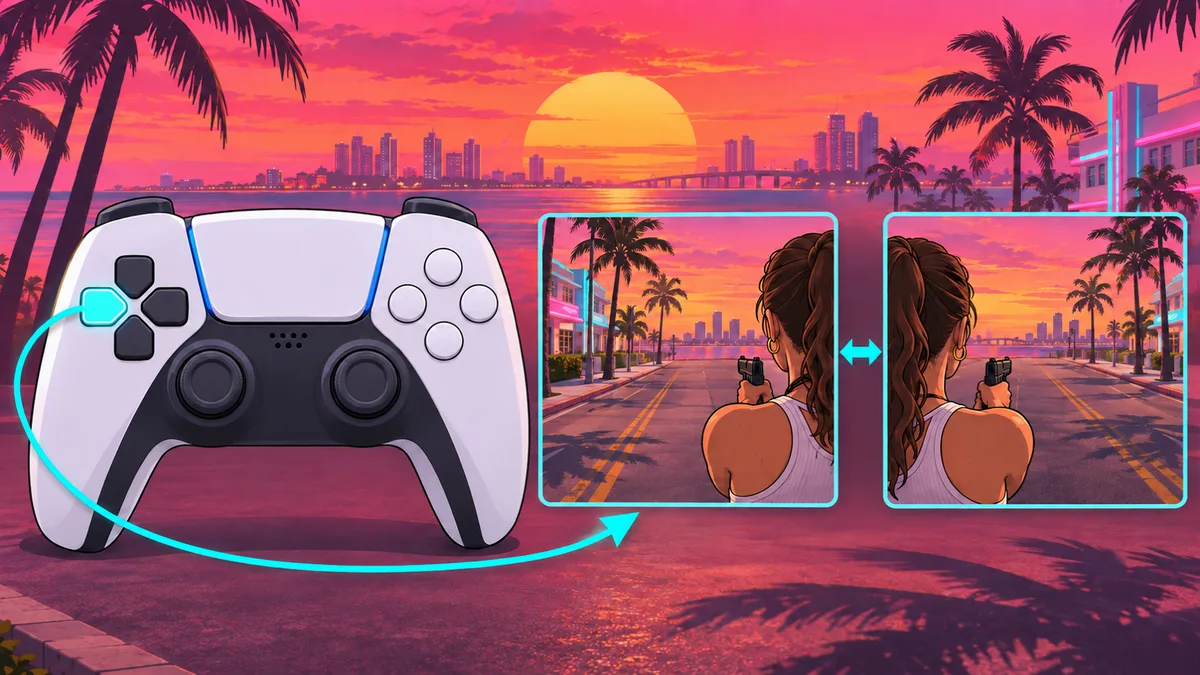
In the Shacknews table for PS5 Default controls, you switch shoulders with D-pad Left while aiming. Basic aiming and firing controls are covered in the aiming controls guide.
- Aim your weapon.
- While aiming, hold D-pad Left, as listed in the Shacknews PS5 Default controls table.
Press or hold D-pad Left? Sources differ
All four sources list D-pad Left for switching shoulders while aiming, but only Shacknews specifies PS5 Default controls. They differ on whether you press or hold it.
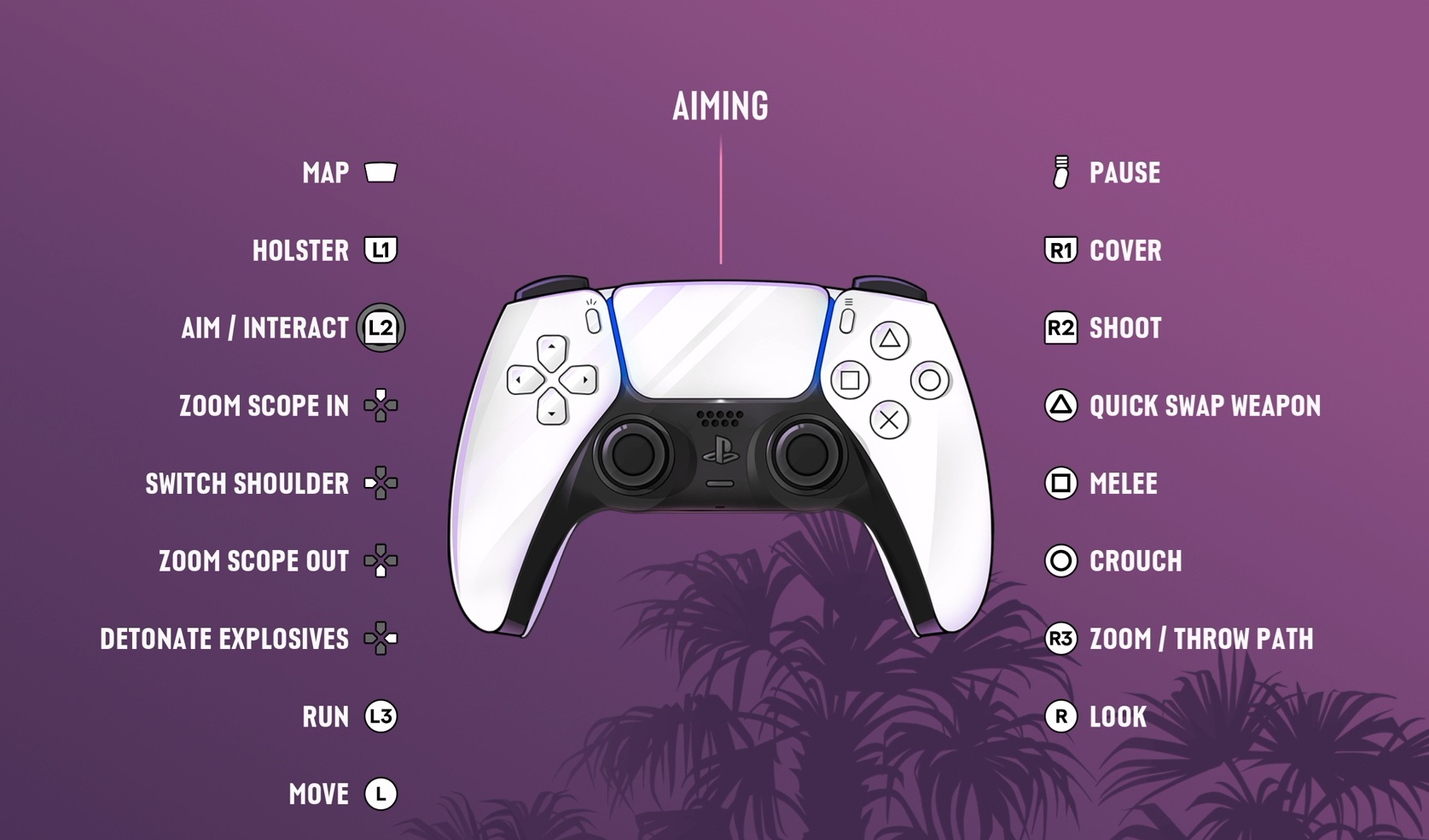
| Mobalytics (AIMING diagram, left side of controller) | Highlights only the left D-pad icon in white for SWITCH SHOULDER; no hold-duration text is visible, so it is unclear whether holding is required |
|---|---|
| Shacknews (GTA 6 PS5 Controls (Default) Aiming table) | Lists Switch Shoulder as holding D-pad Left |
| BisectHosting (PlayStation Controls Aiming list) | Lists Switch Shoulder as holding D-Pad Left |
| PC Gamer (Morgan Park, Combat section) | Lists pressing Left D-pad while aiming to switch aiming shoulder |
What D-pad Right does while aiming (Mobalytics diagram)
In the Mobalytics AIMING diagram, SWITCH SHOULDER is marked by the left D-pad icon, while DETONATE EXPLOSIVES is marked by the right D-pad icon.
See the diagram of the left and right D-pad assignments while aiming (Mobalytics)
Unconfirmed control layouts and platforms
Confirmed inputs apply only while aiming a weapon. The available sources do not confirm this input for other PS5 layouts or for Xbox.
| PS5 layouts other than Default | Unconfirmed |
|---|---|
| Xbox | Unconfirmed |