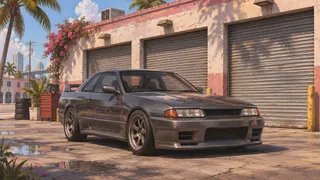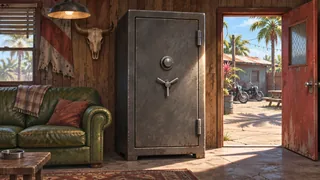

What happened after restarting?
After restarting, the mission appeared incomplete again and an impound notice appeared. In this case, the player completed a mission, let the game autosave, made a manual save, and then closed or restarted the game.
When loading back in, the player spawned at a different location near where they saved.
To recover an impounded car, see How to Get Your Impounded Personal Vehicle Back in GTA VI, and for mission replay rules, see Can You Replay Completed Missions in GTA VI?.
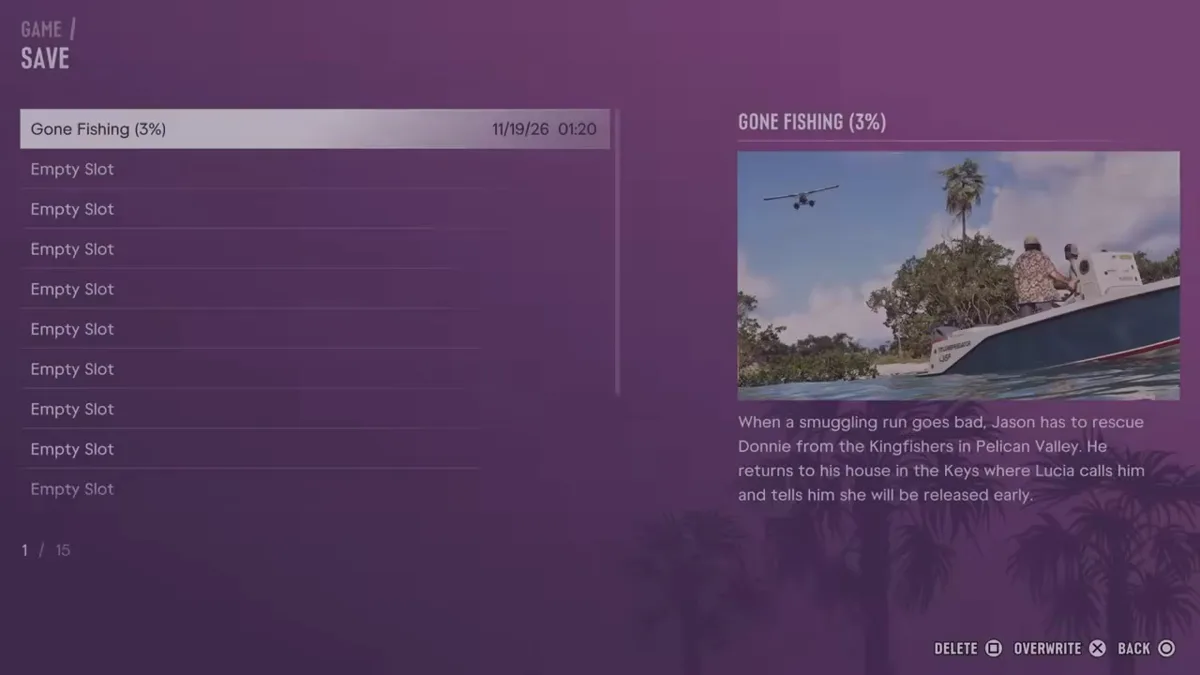
How to check your saves in Load Game
Use Load Game to identify the latest save. After loading it, check the completion status in the mission list.
Whether this check can recover the lost progress is not yet known.
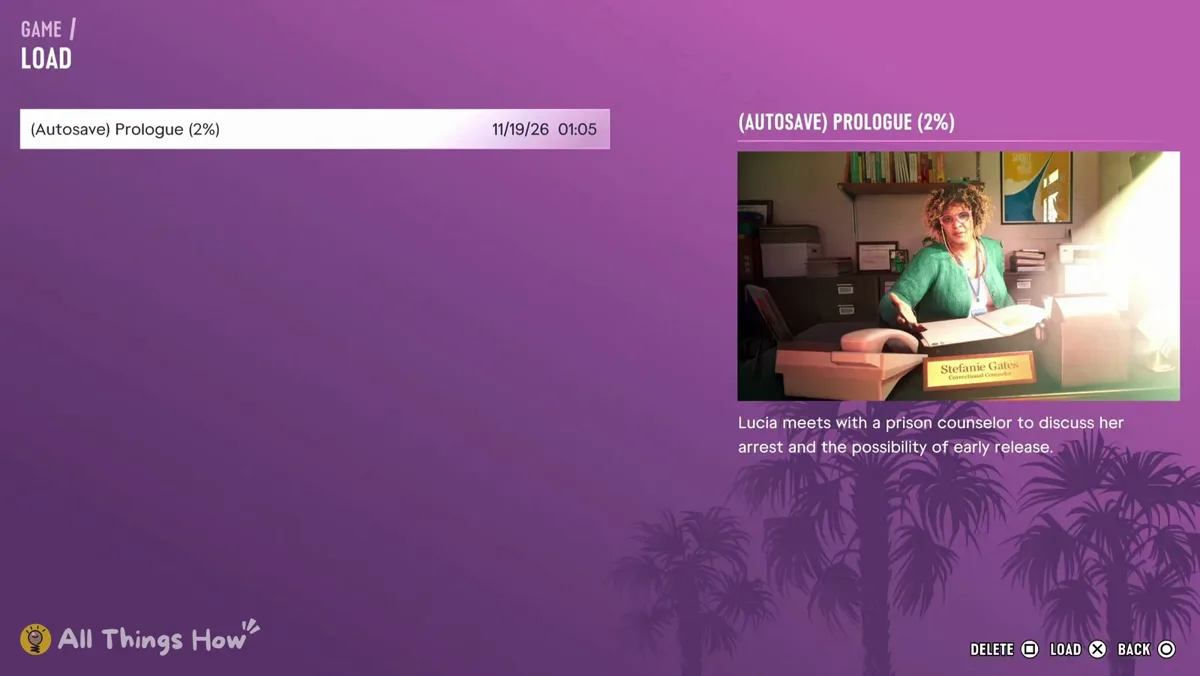
- Open the Load Game screen.
- Compare the date and time on each listed save.
- Load the save slot with the latest date and time.
- Check the mission completion status in the mission list.
Screenshot showing how to spot the autosave entry in Load Game
How to save into an empty slot going forward
This check tests saving into an unused slot after completing a mission to confirm the mission status.
For step-by-step details, see PS5 manual save controls and when manual saving is available.
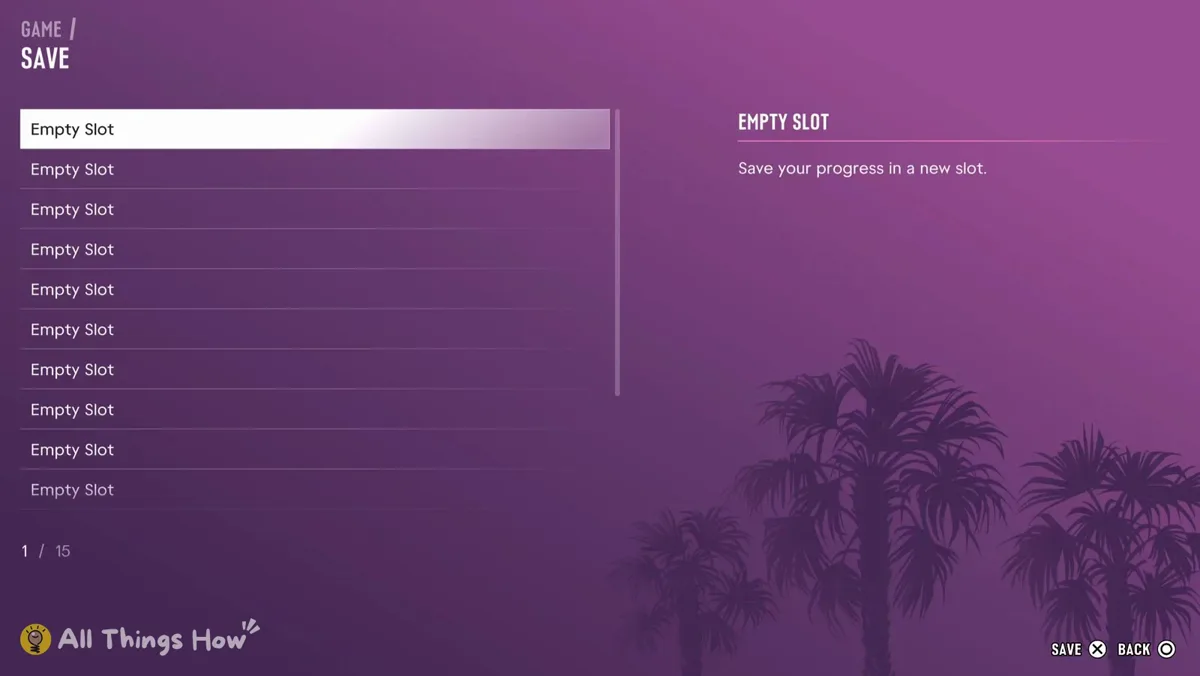
- Complete the mission.
- Wait until the on-screen save icon disappears.
- Save into an "Empty Slot" on the "Save Game" screen.
- Check the mission completion status.
How to Save Manually in GTA VI on PS5 and Why You Can't Save
Has an official update fixed this?
The official November 23, 2026 update for PS5 and Xbox Series X|S lists a fix for an issue where the game was not autosaving correctly.
Mission status reverting to incomplete after a manual save and vehicle impound notices are not listed as specific fixes.
| Update date | November 23, 2026 |
|---|---|
| Platforms | PS5 and Xbox Series X|S |
| Listed fix | Game not autosaving correctly |