How to Turn On the Ganado’s Hazards on Xbox Series X|S
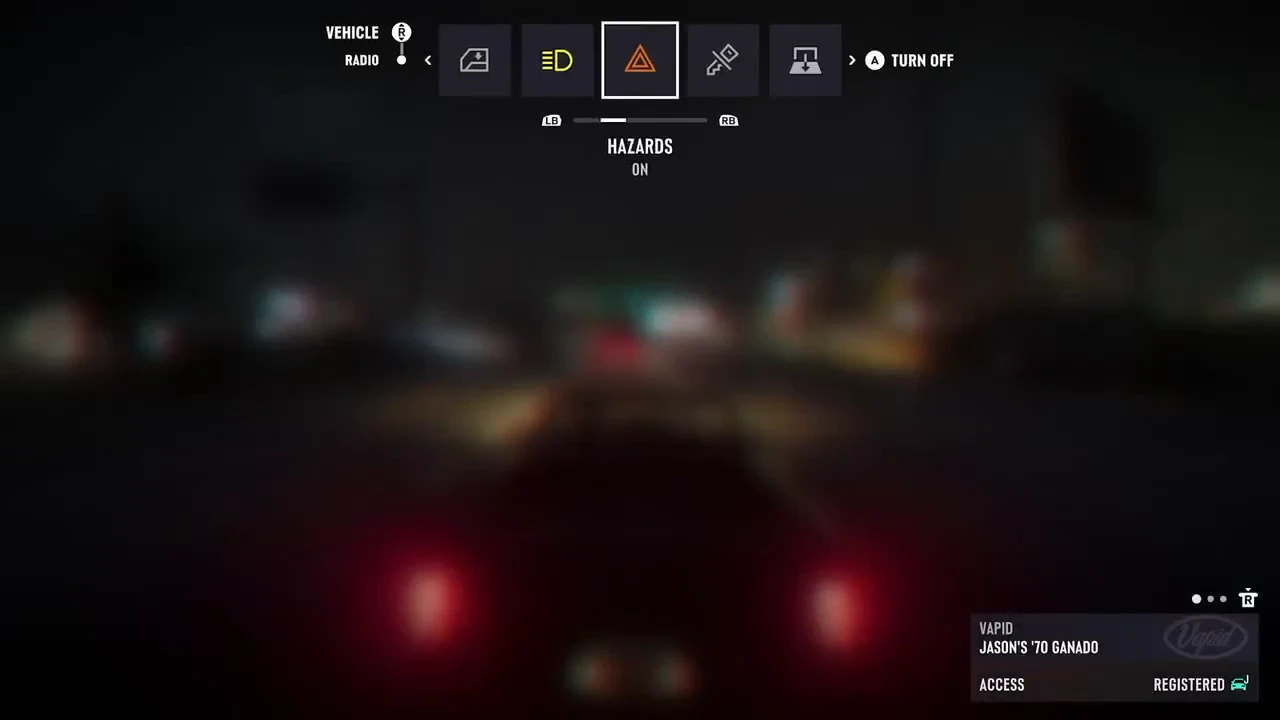
On the default Xbox layout, pressing A performs the action shown on the right. After selecting HAZARDS in the Ganado’s vehicle menu, check the current state and the prompt before pressing A.
- Select HAZARDS in the Vehicle row.
- Press A only if the state is OFF and the prompt on the right reads A TURN ON.
- Check for ON and A TURN OFF. If you already see both when you select HAZARDS, the hazards are on and no input is needed.
Ganado Hazard Controls and On-Screen Labels
The vehicle dashboard guide calls the option “Hazards.” In the Ganado demonstration, it appears as HAZARDS in the Vehicle row.
| Platform shown | Xbox Series X|S |
|---|---|
| Vehicle | Ganado |
| Menu row | Vehicle |
| Option label | HAZARDS on screen, Hazards in the guide |
| Controller input | A (default Xbox layout) |
| State change | OFF to ON |
| Next prompt | A TURN OFF |
What the Launch-Period Recording Shows
At 0:02–0:06 in the launch-period clip embedded in Leonida Interactive’s guide, the player selects HAZARDS in the Ganado on Xbox Series X|S.
With the state at OFF, the player presses A. The state changes to ON and the prompt reads A TURN OFF.
The segment ends with A TURN OFF visible. It does not show the player turning the hazards off. Behavior in other vehicles or on other platforms is unverified.
How to Change Radio Stations While Driving in GTA VI
See the hazards toggle (Leonida Interactive gameplay, 0:02–0:06)