

How to Turn On Mute Licensed Music on PS5
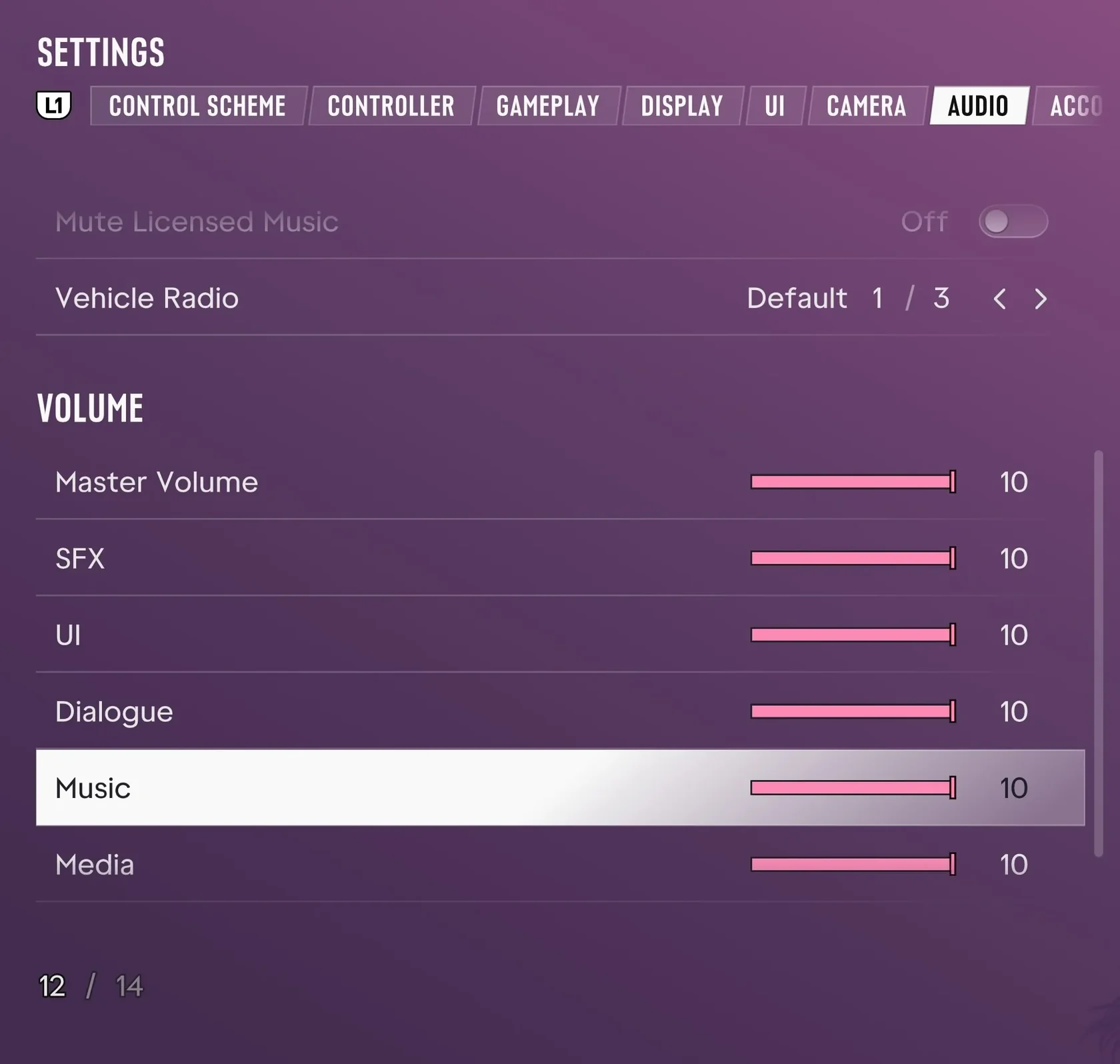
Do this during gameplay. Rockstar Support directs players from the pause menu to Settings and then Audio. ViceManual's PS5 hands-on record (English UI) shows Mute Licensed Music in that Audio menu.
- During gameplay, press the OPTIONS button to open the pause menu.
- Select Settings.
- Open Audio.
- If Mute Licensed Music is adjustable, switch it to On and check that the value shows On.
What the Off and On Screenshots Show
ViceManual’s PS5 screenshot from launch build 930.048.020 shows the English option dimmed and set to Off.
A separate screenshot from Shacknews shows the value set to On, alongside the in-game description that the option mutes licensed music.
The sources consulted do not identify what makes the option appear dimmed.
| ViceManual PS5 screenshot | Off; the row is dimmed |
|---|---|
| Shacknews screenshot | On; the description says it mutes licensed music |