
How to change subtitle coverage and size on PS5
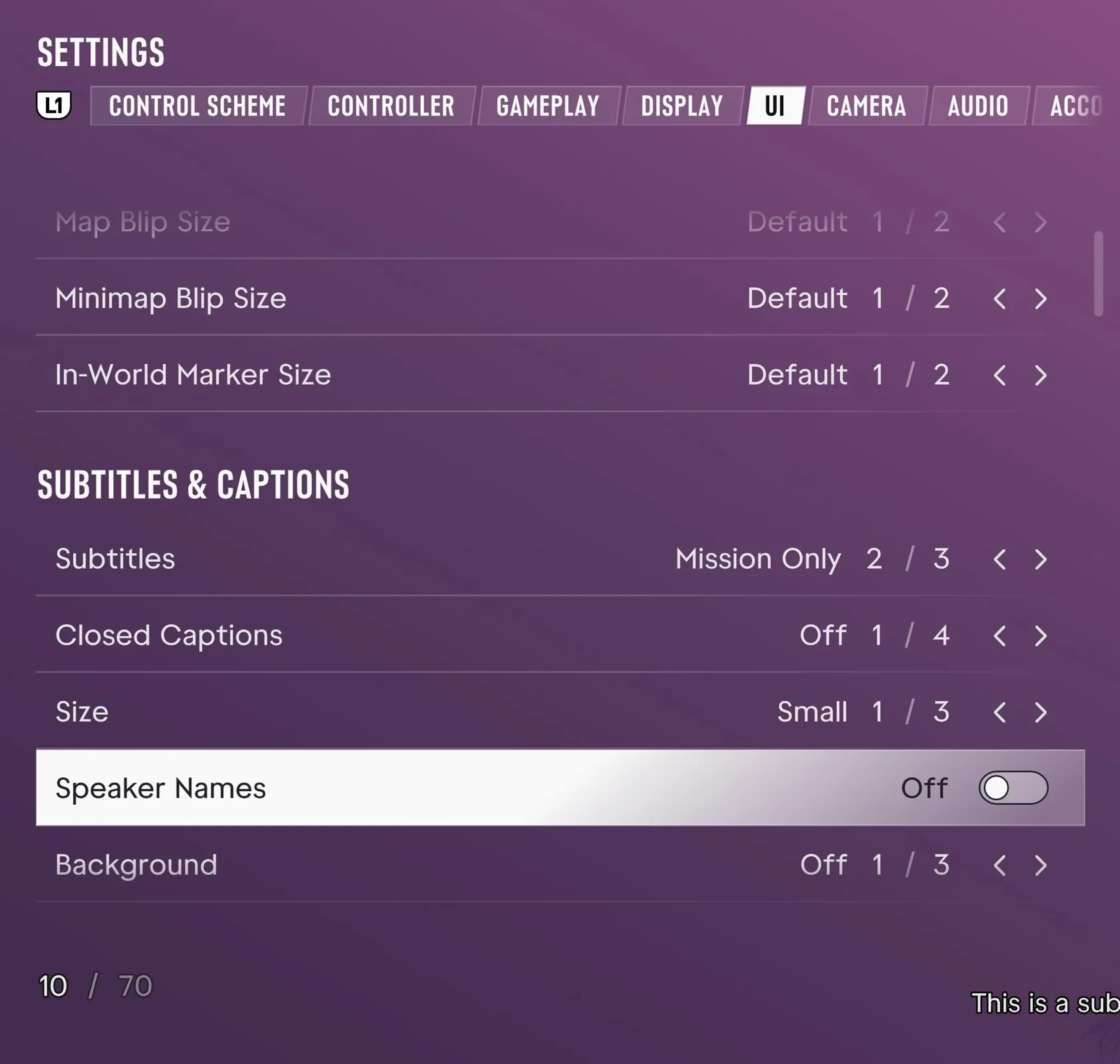
All Things How recorded these menu labels in the English PS5 interface at launch. The subtitle settings appear together in the Subtitles & Captions section of the UI tab.
ViceManual notes that Size has 3 levels and changes subtitles and closed captions together.
- Pause the game.
- Select Settings.
- Press R1 until you reach the UI tab.
- Scroll down to the Subtitles & Captions section.
- Use Subtitles to choose when dialogue subtitles appear.
- Set Size to a larger level.
Dialogue coverage, speaker names and subtitle backgrounds
The Japanese PlayStation Store lists subtitle support for all in-game dialogue. ViceManual reports three choices under Subtitles. Its test does not identify which choice covers all dialogue.
| Subtitles | When subtitles appear |
|---|---|
| Speaker Names | Set to On to see whether Jason or Lucia is talking |
| Background | Changes the subtitle background |
Changing your first-launch subtitle choice, and how UI Text Size differs
All Things How found that the first-launch SUBTITLES screen defaults to Off and also offers Small, Medium and Large. In its PS5 test, choosing a size here left Subtitles set to Mission Only during play. You can change the size again from Settings.
ViceManual notes that UI Text Size is separate from subtitles. To make subtitle text bigger, change Size under Subtitles & Captions, not UI Text Size.
See the subtitle size screen shown on first startup (All Things How)