How to Switch from the Tilted Map to 2D View on PS5
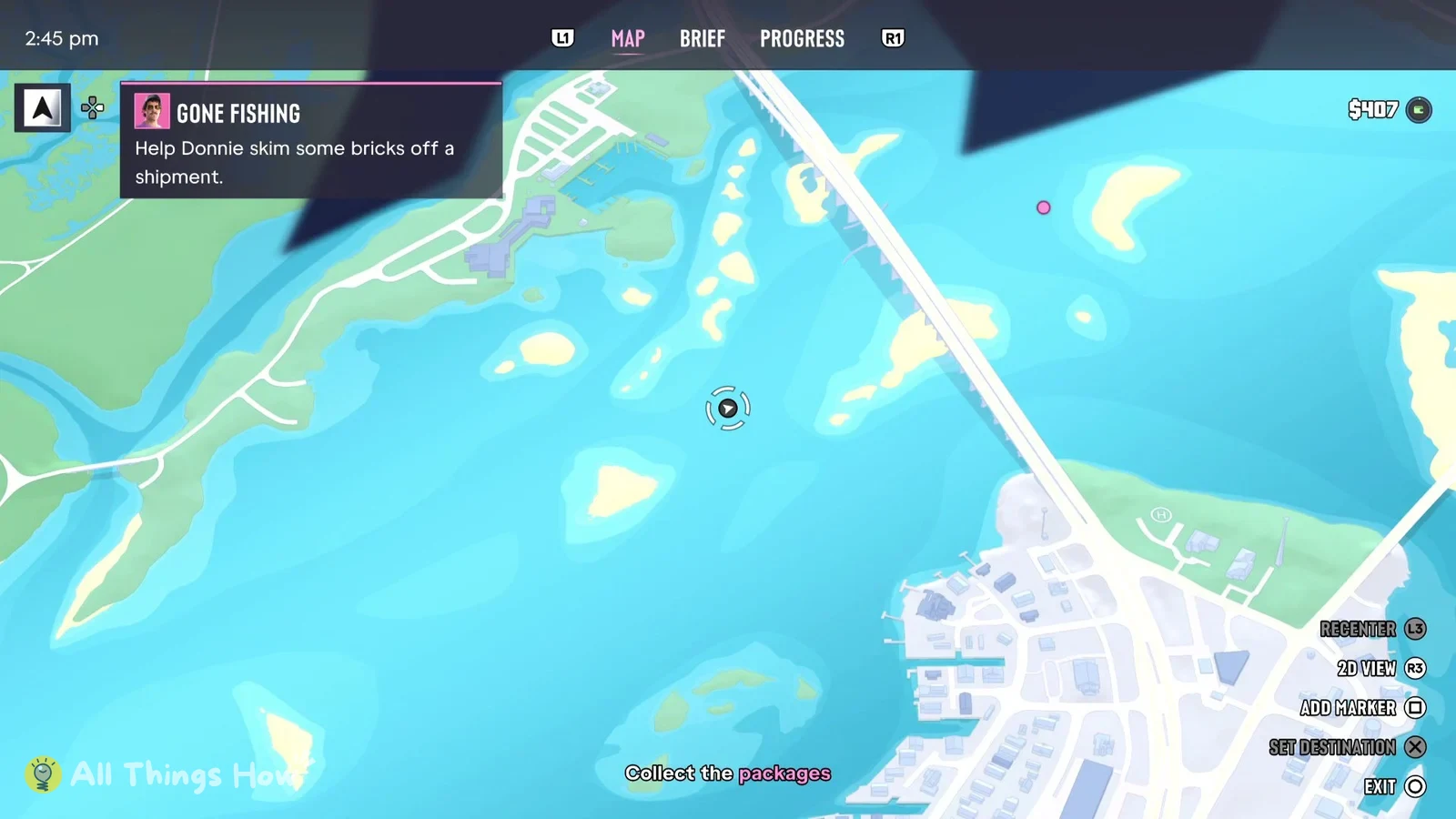
According to All Things How's article and screenshot, the steps are as follows.
If the view does not change, open Map from the pause menu and check the 2D View prompt at the bottom right. ViceManual’s screenshot from the start of Story Mode shows the prompt greyed out.
The conditions that make the prompt available have not been confirmed.
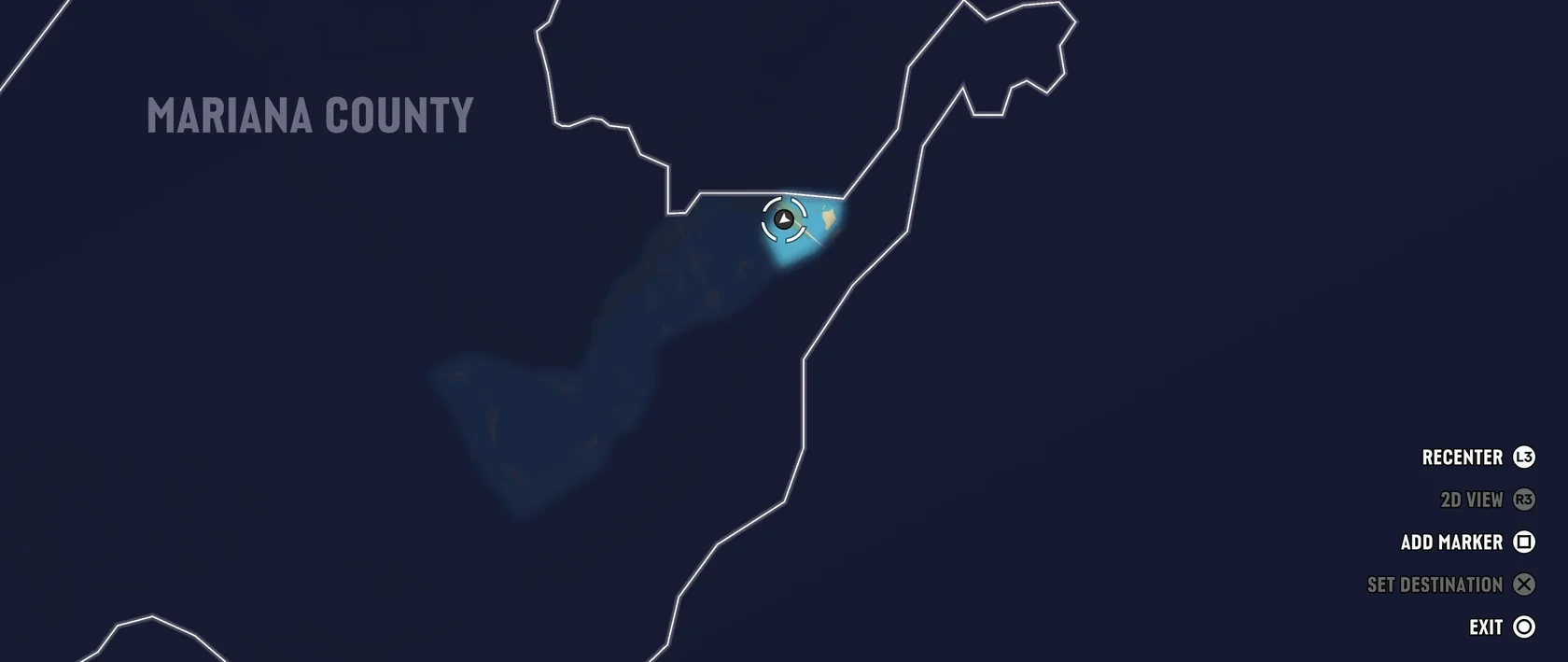
- During gameplay, pause with OPTIONS and open Map. The tilted world map appears by default.
- Press R3 when 2D View is active in the bottom right. The map switches to a flat view.
Test Environment for ViceManual's Map Screens and Controls Table
Separately from All Things How, ViceManual also publishes map screens and a controls table. Its listed environment is as follows.
| Platform | PS5 |
|---|---|
| UI language | English |
| Build | Launch build 930.048.020 |
| Account region | New Zealand |
Which Retail Map View Matches the Pre-Launch "Satellite-Style" Description?
Two pre-launch Reddit posts described the pause map as satellite-style. One summarized an IGN preview. The other reposted a third party’s summary of Game Informer’s reporting.
It has not been confirmed whether that description refers to the default tilted map or the flat 2D View in the retail version.
How to Set a Waypoint Without Opening the Map in GTA VI on PS5