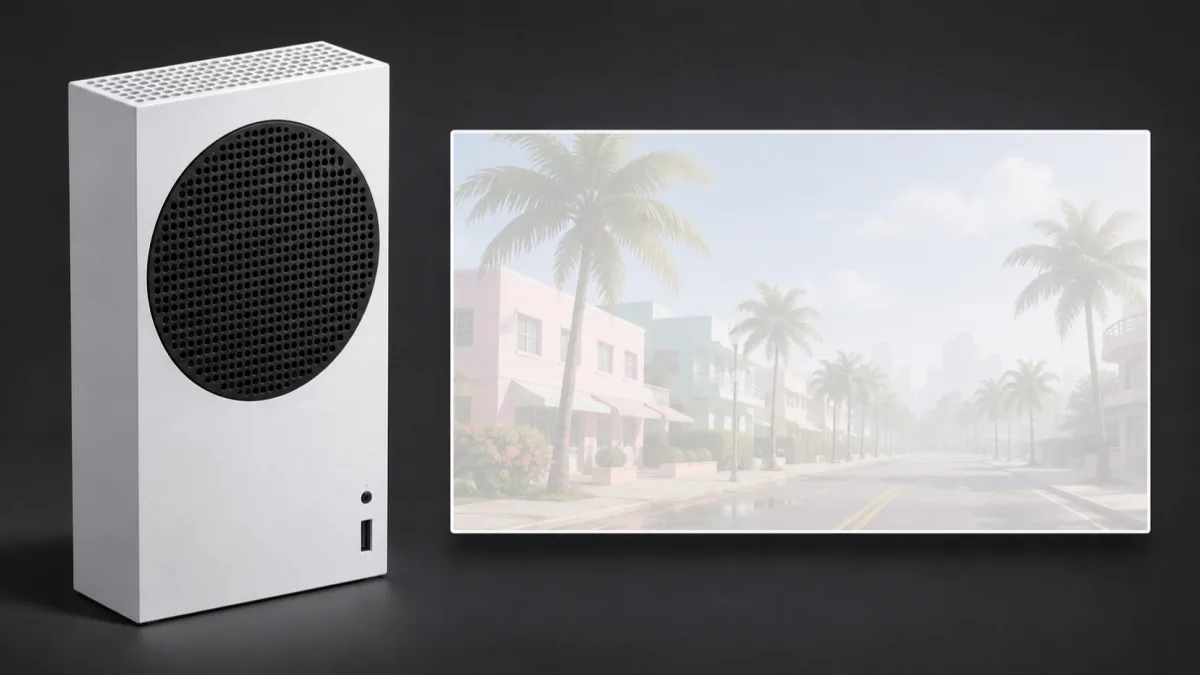
Where does the white haze show up?
In one Xbox Series S case, a white haze appeared only in saved screenshots and clips. Gameplay looked normal.
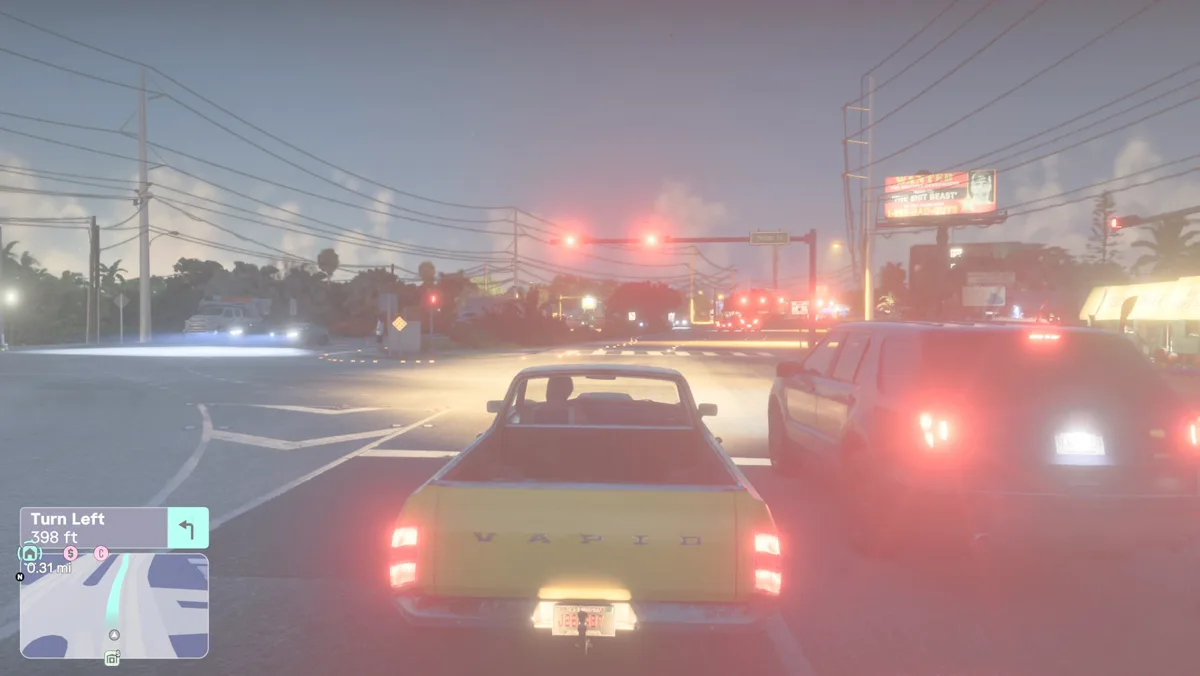
How to turn off HDR and restart your Xbox Series S
In one case, new screenshots taken after the settings change but before the restart came out very dark.
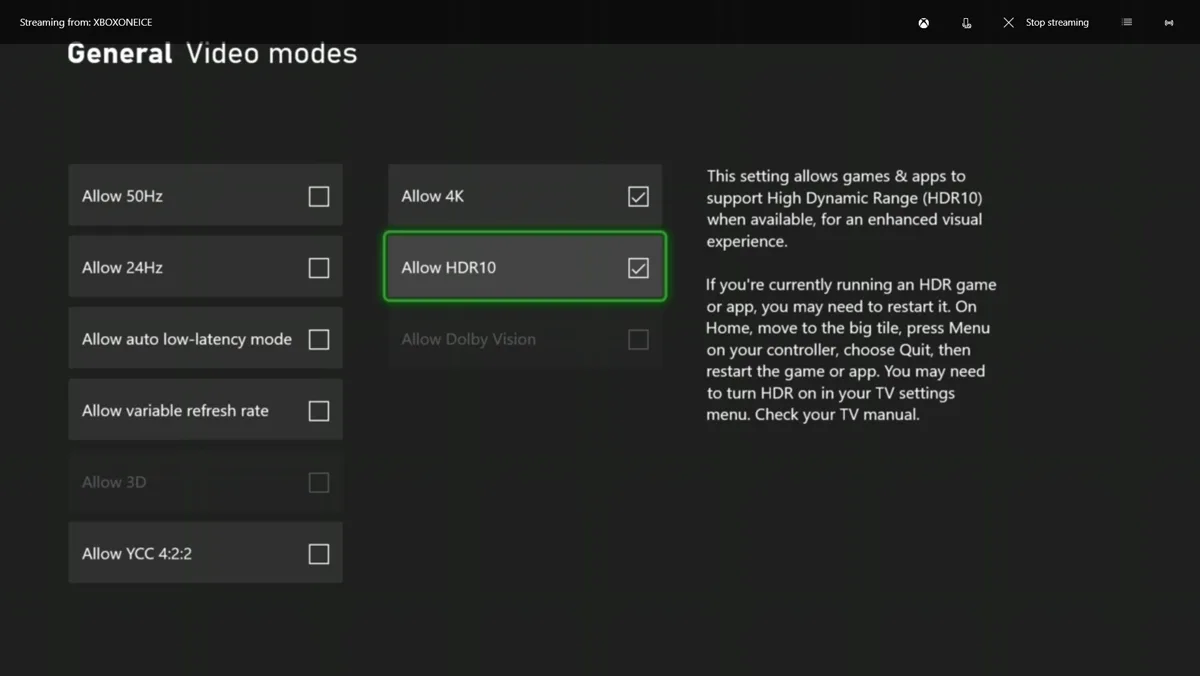
- Open Settings on your Xbox.
- Select General.
- Open TV and display options.
- Under Advanced, open Video Modes.
- Uncheck Allow HDR10.
- Restart your Xbox.
- Take a new screenshot in GTA VI and check the saved image.
Can you turn off HDR just for screenshots and clips?
It’s unclear whether you can turn off HDR just for saved screenshots and clips. Untested HDR settings suggestions
Untested suggestion for turning off HDR just for captures (GTA6BUGS)