What input lag symptoms occur on each console?
Player experiences with controller delay vary by action, including steering lag while driving and delay that affects precise aiming.
| Xbox Series X | Perceived steering delay when moving and releasing the left stick on the included controller; the delay seemed to go away when the game launched with an update and returned the next time the player opened it (u/Yota8883) |
|---|---|
| Xbox Series S | Noticeable input delay making fast driving and shootouts hard, experienced only in GTA 6 on a TV without game mode (u/ReyKracked_Rey) |
| PS5 Pro | Perceived delay on every action making precise aiming difficult; adjusting camera sensitivity did not fix it (u/VertigeB) |
| Base PS5 | Noticed lag only in the horn animation, with sound almost immediate and the animation noticeably behind especially on repeated presses (u/MurderCityDan) |
How to check TV game mode and HDMI input settings
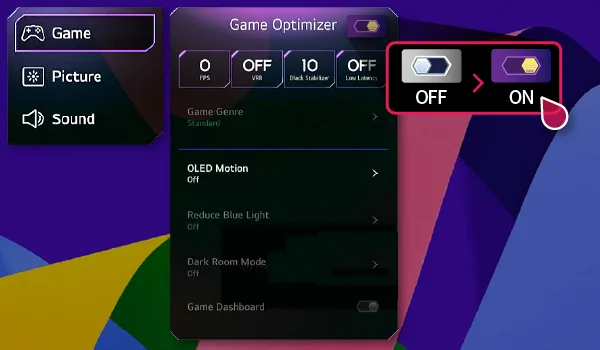
If your TV offers game mode, check that game mode is enabled on the HDMI input connected to your console.
In one Xbox Series X and Sony Bravia case, switching back to the Xbox HDMI input reverted Content type from Game to Video/Image, and setting it back to Game improved steering (see the firsthand Xbox Series X and Sony Bravia post).
The image shown here is an example of LG's Game Optimizer menu.
A TV without game mode cannot make this switch.
Lab tests at 4K and 60 Hz (4K60) show a large gap in TV-side input lag between Game Mode and non-game modes with motion interpolation (frame smoothing) enabled.
That test changes both picture mode and interpolation at once, and it does not measure the specific player delays or root cause reported on consoles.
To see how LG OLED TruMotion (motion smoothing) affects response time, check How Does LG OLED TruMotion Affect GTA VI?.
| LG C6 OLED (4K60) | 10.3 ms in Game Mode vs. 86.0 ms outside Game Mode with interpolation on (Pascal Messiaen, RTINGS) |
|---|---|
| LG G6 OLED (4K60) | 9.8 ms in Game Mode vs. 85.9 ms outside Game Mode with interpolation on (Pascal Messiaen, RTINGS) |
How Does LG OLED TruMotion Affect GTA VI?
How the Sony Bravia Content type changed when switching HDMI inputs
In-game controller and display settings to adjust
The table below shows one base PS5 player's combined settings on a non-OLED display intended to improve responsiveness (u/Serious_Specter).
Individual latency changes were not measured for these tweaks, so this reflects perceived responsiveness rather than a measured drop in actual delay.
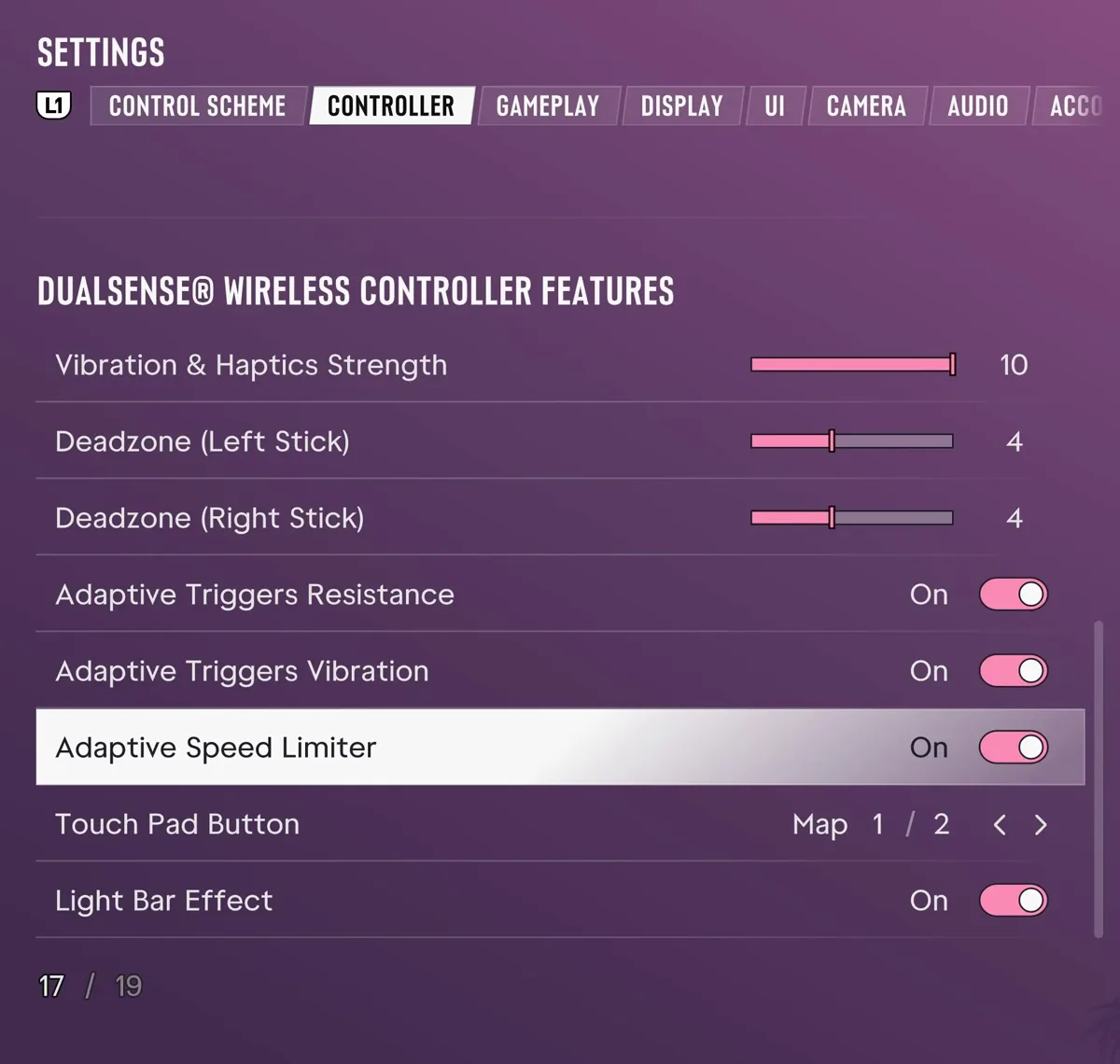
In the English PS5 Settings menu, the Controller tab lists "Deadzone (Left Stick)" and "Deadzone (Right Stick)" under "DUALSENSE® WIRELESS CONTROLLER FEATURES", while the Display tab includes "Motion Blur Strength".
For menu navigation on stick deadzones and DualSense features, see GTA VI PS5 deadzone, vibration, adaptive trigger, and camera inversion settings.
To turn off motion blur or change driving camera Follow Speed (how quickly the camera returns behind you), see Turn Off Motion Blur and Change Camera Follow Speed in GTA VI PS5.
| Look sensitivity (horizontal / vertical) | Both horizontal and vertical options set to 12 (Controller tab: normal camera speed) |
|---|---|
| Aim sensitivity (horizontal / vertical) | Both horizontal and vertical options set to 14 (Controller tab: camera speed while aiming) |
| Acceleration (look / aim) | Both look and aim acceleration options set to 14 (Controller tab: input acceleration) |
| Aim Response Curve | Precision option selected (Controller tab: aiming response curve) |
| Deadzone (Left Stick) / (Right Stick) | Left Stick 2 / Right Stick 0 (Controller tab: stick movement threshold) |
| Movement Speed | Jog option selected (Gameplay tab: movement speed) |
| Motion Blur Strength | 0–2 (Display tab: motion blur intensity on a non-OLED display) |
GTA VI PS5 deadzone, vibration, adaptive trigger, and camera inversion settings
Find stick deadzones and Motion Blur Strength in the PS5 Controller and Display tabs
Console settings one base PS5 player tried
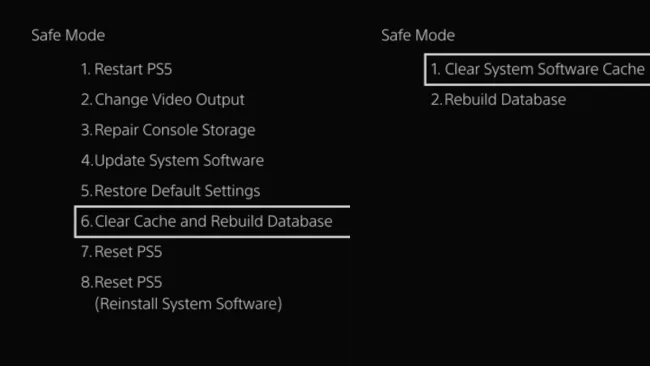
Along with in-game tweaks, the base PS5 player setup (u/Serious_Specter) disabled HDCP (HDMI copy protection) in console settings and cleared the system software cache from Safe Mode (the PS5 troubleshooting menu).